
FAQ
Frequently asked questions
Onboarding, trials and features of the eHairPOS salon POS system. Can't find an answer? Talk to our team.
eHairPOS is a salon POS and store management system built for the hairdressing industry. Three apps — BOSS for owners, POS for staff and GO for members — cover online booking, checkout, member wallets, commission and reporting.
It removes the cost of phone bookings, handwritten ticket errors, untracked stored value and packages, slow commission maths, and revenue data scattered across stores. Everything syncs automatically.
No application needed. Download eHairBOSS from the App Store, install it, and the free trial starts immediately — with free credits granted on activation.
iPhone and iPad, so you can work at the front desk or manage the salon on the move.
Yes. Single salons and chains are both supported. The owner app sets products, pricing, staff permissions and payroll rules per store, with cross-store revenue reporting.
The member wallet combines stored value, package tickets, coupons and points. Salons define rules and promotions, and members check balances and history anytime in the GO app.
Owners set performance formulas and commission rates; the system calculates individual performance and bonuses automatically, generates payroll in one click, and shows stylists their numbers live.
Most salons finish the basic setup and start issuing tickets the same day. Once products and services are imported you are live; our specialists can help if needed.
eHairPOS requires no application and no contract lock-in — install and start your free trial. Free credits are granted when you activate the service, and pricing depends on the number of stores and your usage. Contact us via LINE or Messenger for a quote.
Yes. eHairPOS is a cloud salon system available everywhere. Salons, hair studios and one-person workshops can activate directly from the App — no on-premise server or wiring required.
Absolutely. A solo stylist can just use POS with GO so clients book online and view their stored value and packages — no more phone tag or DMs. When you expand, simply turn on multi-store and commission-payroll features.
Yes. Clients pick a stylist and time slot in the GO app; POS instantly syncs the calendar and sends automatic reminders — no double bookings, missed messages or empty slots from last-minute cancellations.
Yes. Client lists, services and prices can be imported from a spreadsheet, and existing stored value and package balances can be carried over. We recommend piloting at one store before rolling out chain-wide.
The system runs on a cloud architecture, so bookings, ticketing and checkout stay in sync in real time. Even during holidays and peak hours, multiple staff can work simultaneously with stable performance and live view of the day's revenue and stylist progress.
Generic POS centres on product checkout. eHairPOS is designed around salon workflows: booking specific stylists, service combinations (cut / colour / perm / spa), assistant profit sharing, performance formulas and commission rates, member stored value and package tickets — everything shaped for how salons actually run.
Knowledge base
Official eHairPOS how-to answers
The complete operating guide for the BOSS, POS and eHairGO apps, with step-by-step screenshots. Original articles are written in Chinese.
58 answers
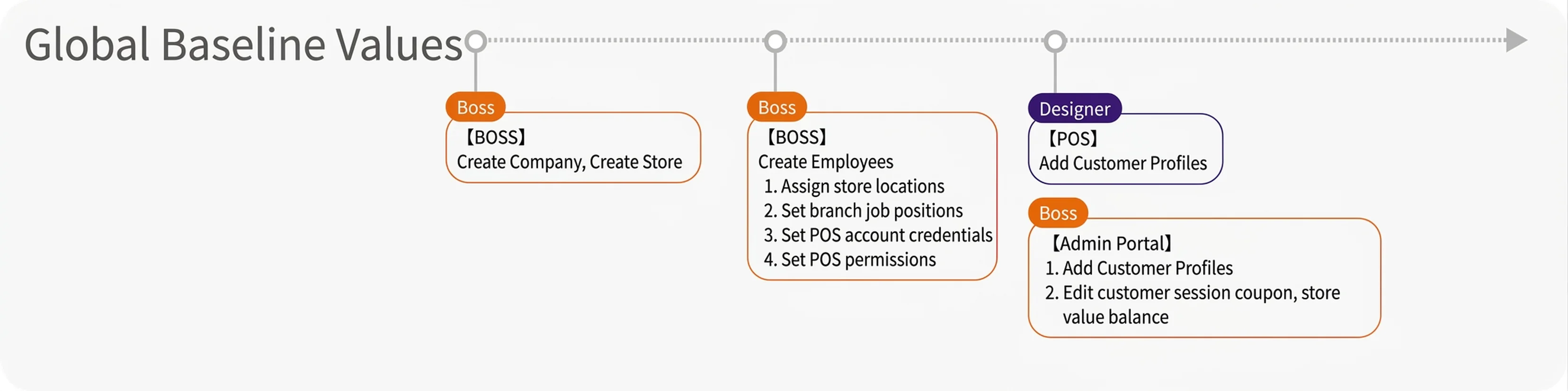
Global shared basic settings
Appointments
Promotion purchases
Checkout

Performance & payroll

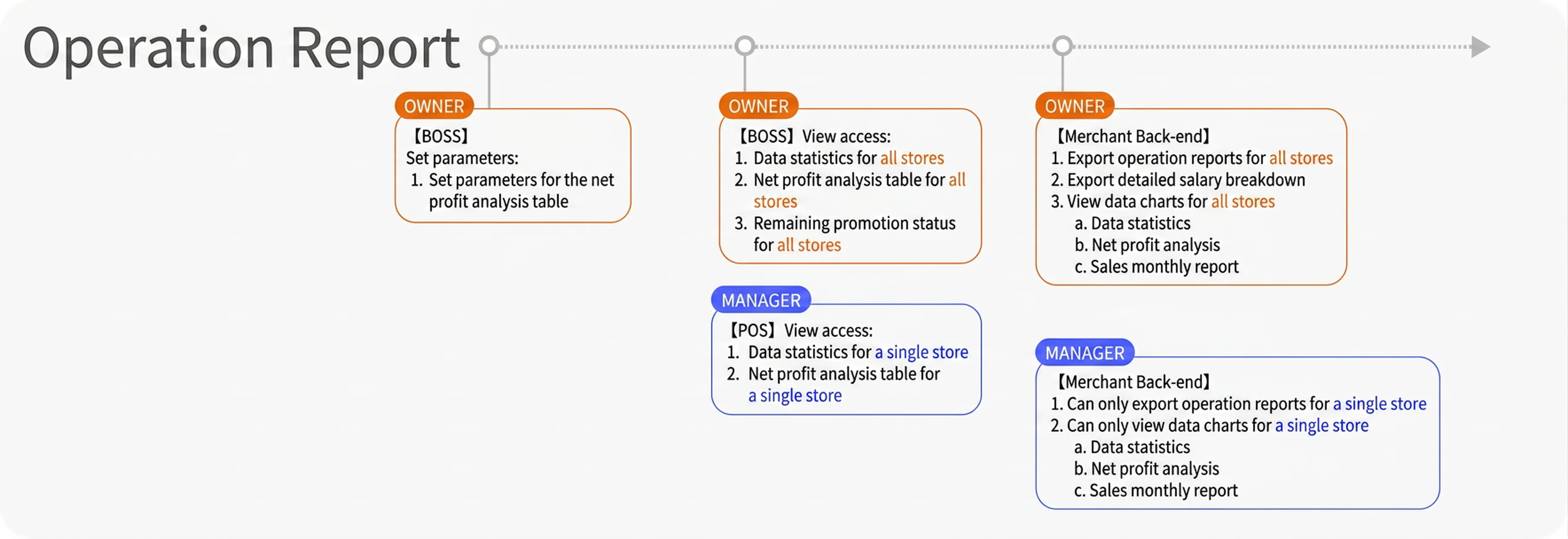
Operational reports
"Physical product" inventory management
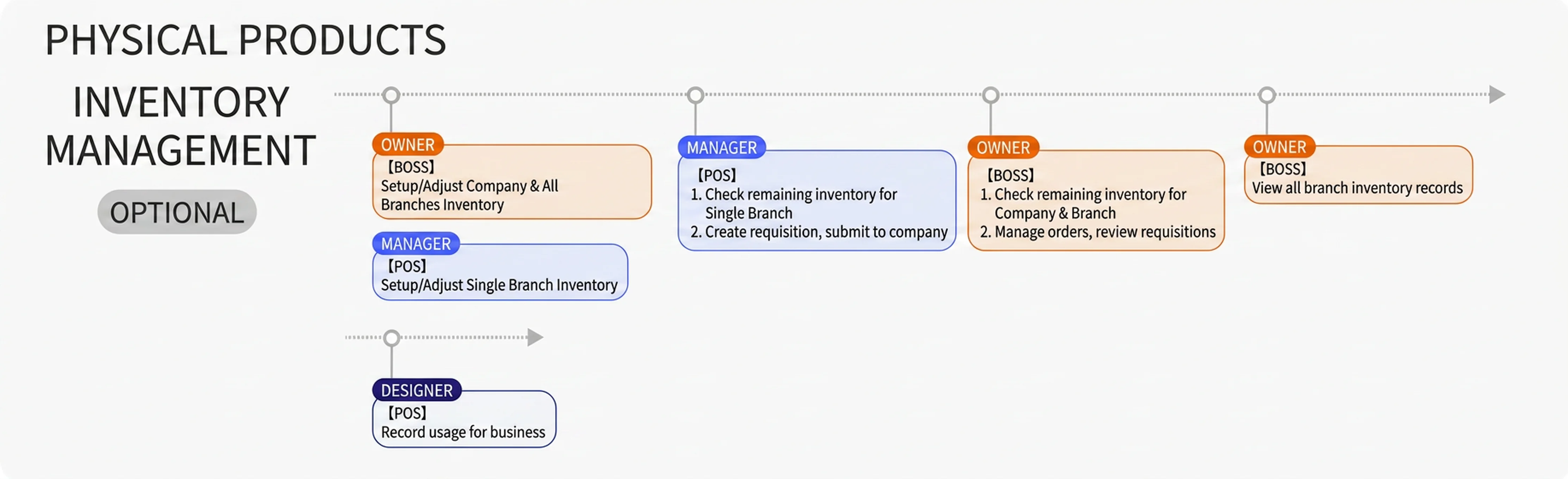
Please follow the steps below to set up the store-wide shared basic data in the BOSS app
Step 01. Store
Additional
Step 02. Staff
1. Job title management
2. Staff management
Additional
1. Change a staff member's position
2. Reset a staff member's POS account password
Step. 03 Products and payment methods
1. Category management
2. Product management
3. Price setup
4. Cost setup
5. Supplier management
6. Payment/refund methods
Additional
1. What happens after disabling a product category?
2. How to edit a product type
3. Set a product's reward points
4. Set a product's availability by store
5. What happens after a product is taken off the shelf?
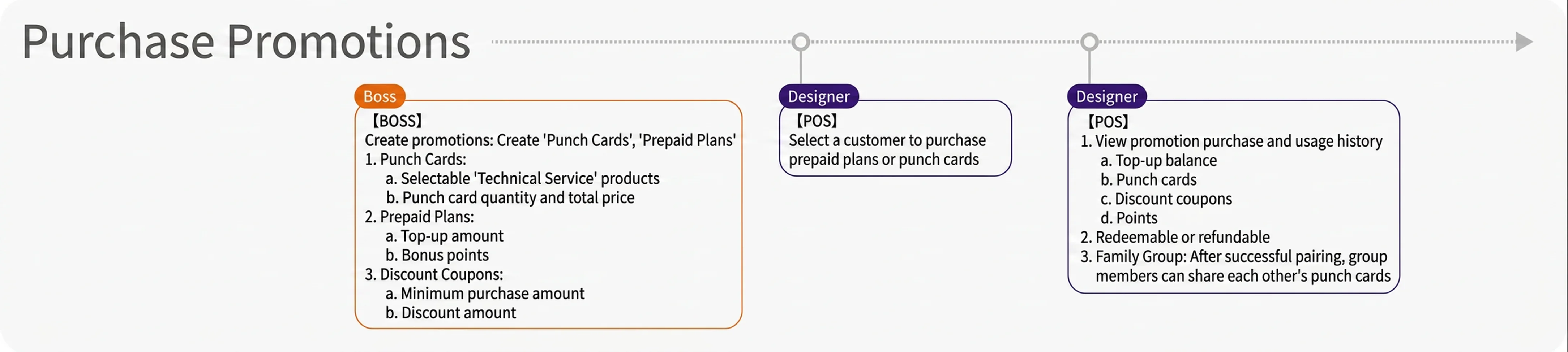
Step. 04 Promotions and session passes
1. Discount coupon management
2. Session pass management
3. Prepaid plan management
Additional
1. How to change the service bound to a session pass
Step. 05 Sales & commission
1. Product type
2. Specific sub-category
3. Specific product
4. Session pass sales
5. Tier templates
6. Employee tier settings
7. Parameter settings: performance settings
Additional
1. The difference between performance and commission?
2. How to adjust the performance commission earned after an order has been checked out成
Step. 06 Appointments
1. Parameter settings: appointment options
2. Freely set "whether appointments require approval"
Step. 07 Payroll
1. Base salary
2. Variable salary
3. Salary payment
4. Salary records
Step. 08 Inventory management
1. Set store inventory
2. View store inventory
3. Inventory change history
Step. 09 Data charts
1. Data charts
2. Net profit analysis setup
3. Operational Excel reports
Once the data is set up, you can proceed with operations in the POS app
Member management
1. Member data
2. Add/view promotions on a member's profile
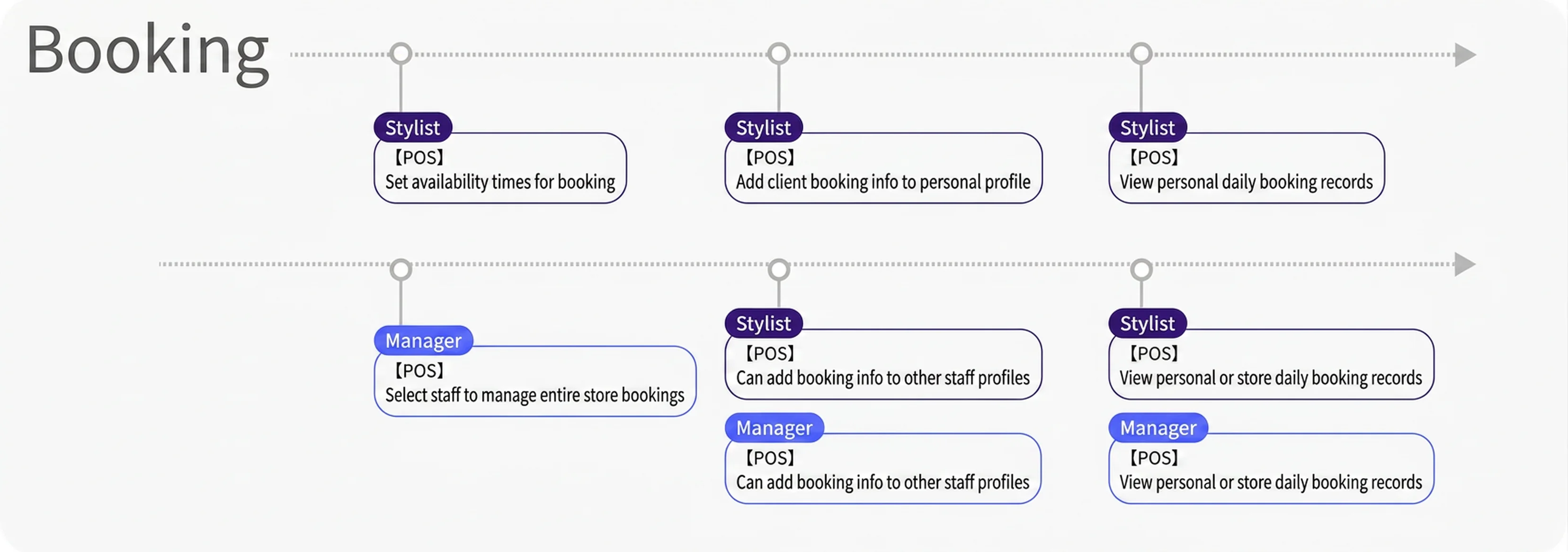
Appointments
1. Designers can set their own appointment times
Additional
1. If I work at multiple stores, how do I set different "appointment slots"
Checkout
1. Creating an order and checkout
2. Order records
3. Delete an order
Shared usage
1. Create a shared-usage record for supplies used
Income & expenses
1. Extra income/expense records
Other
1. Where to view the current app system version when reporting an issue?
2. Feature guide
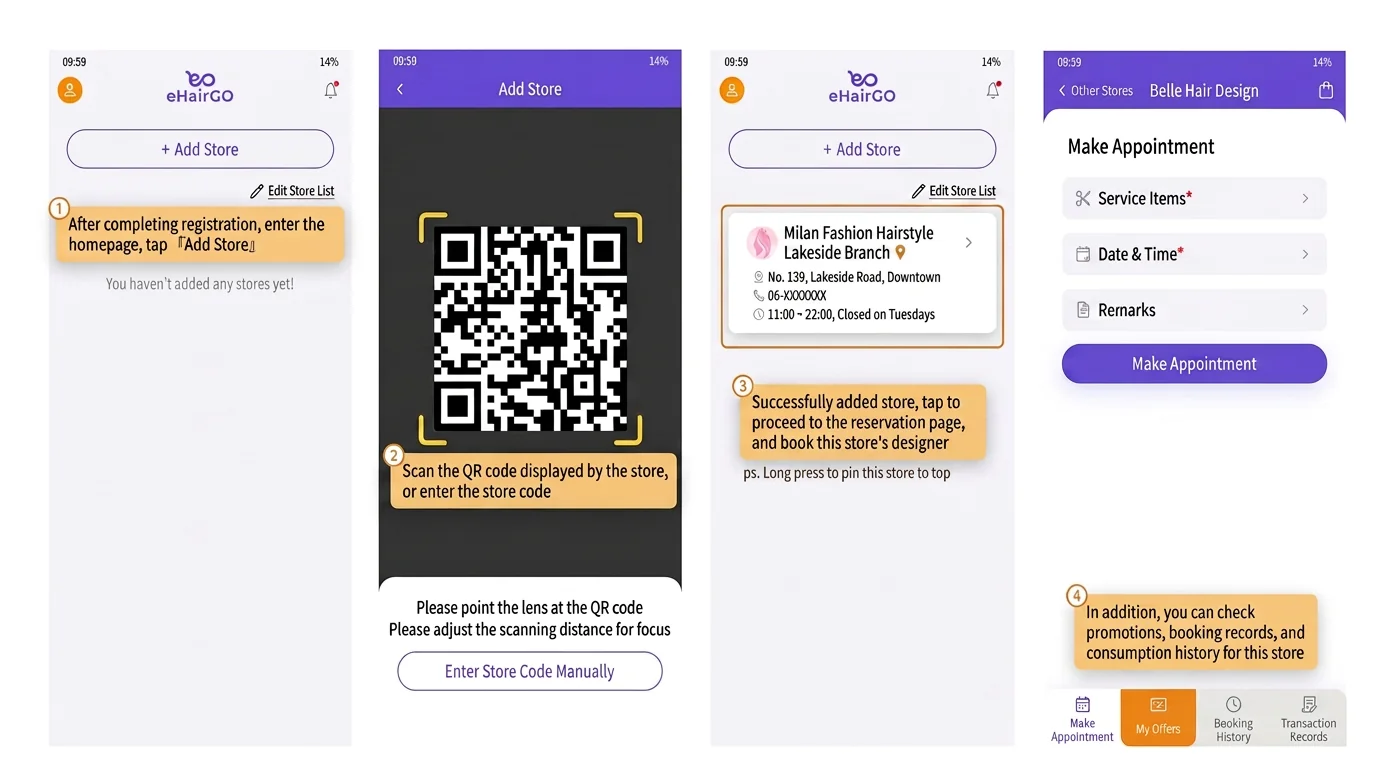
- After completing registration, go to the home screen and tap "Join store"
- Scan the QR code shown by the store, or enter the store code
- Once you've successfully joined the store, tap to go to the appointment page and book with that store's designers
- ps. Long-press to pin this store to the top
- You can also view your promotions, appointment history, and purchase history at that store
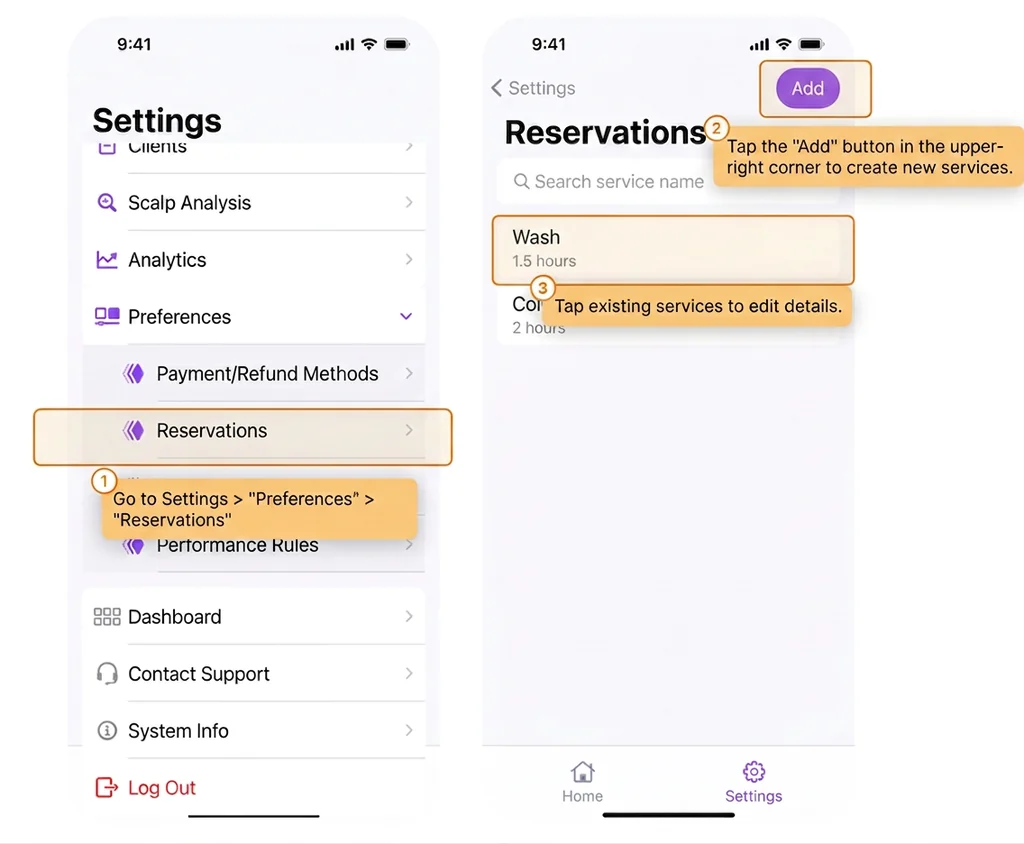
- Open the BOSS app
- Go to Settings > "Parameter settings" > "Appointment options"
- Tap the "Add" button in the top right corner to add an appointment option
- Tap an existing appointment option to edit it
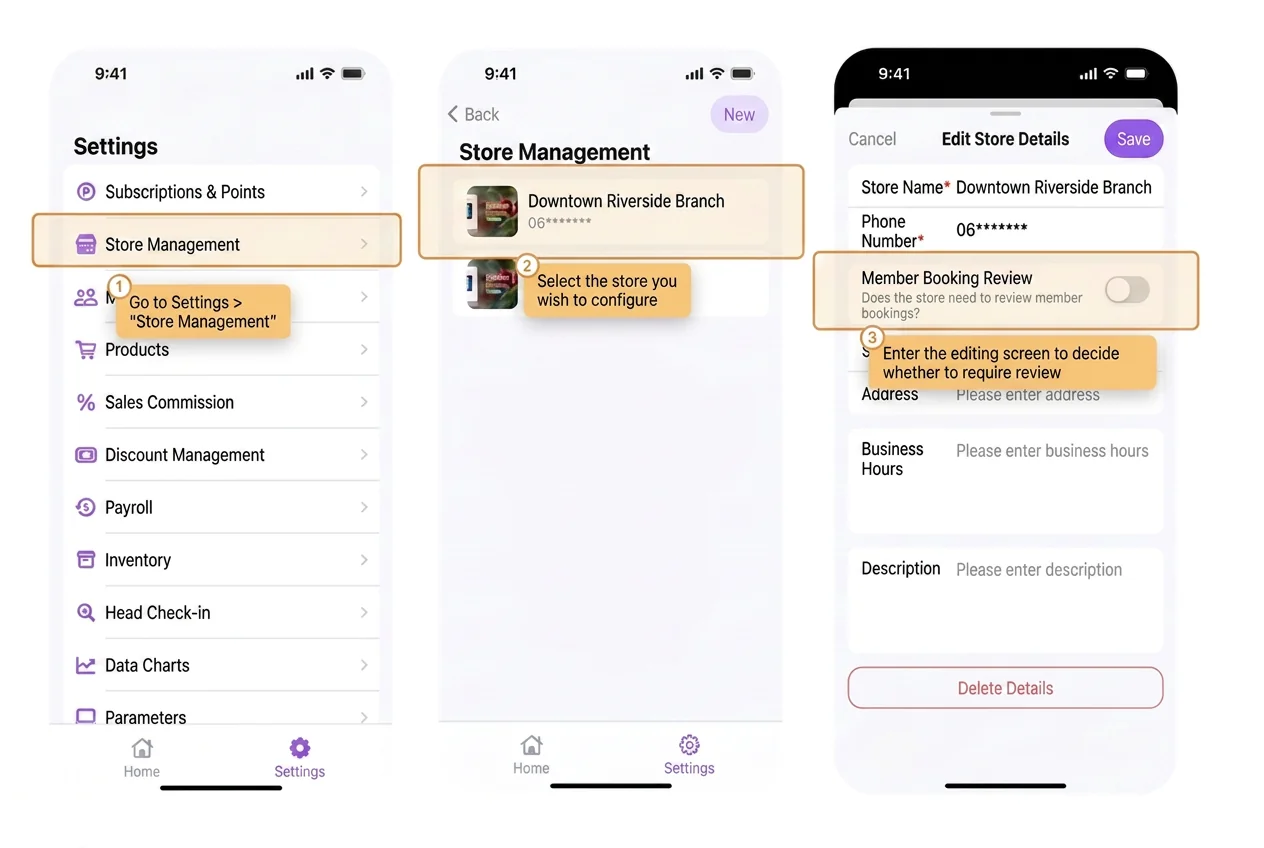
- Open the BOSS app
- Go to Settings > "Stores"
- Select the store you want to configure
- On the edit screen, you can decide whether approval is required
![[POS] If I work at multiple stores, how do I set the](/assets/lovable/4f485be0-18bd-4740-aaea-9890cde3ca1e/Frame-2225-10-1024x905-en.webp "eHairPOS salon POS system — [POS] If I work at multiple stores, how do I set the")
- Open the POS app
- After logging in, tap "More" in the bottom menu to enter the feature menu
- Choose to switch to another store to set the available appointment times for that store
![[POS] How do I create an order?](/assets/lovable/396703cf-b394-45a6-85ed-c53ce23c2323/Frame-2235-3-1024x706-en.webp "eHairPOS salon POS system — [POS] How do I create an order?")
![[POS] How do I create an order?](/assets/lovable/65b2a8cd-f1f8-4bcd-91a7-1c65b837d2f0/Frame-2236-4-1024x753-en.webp "eHairPOS salon POS system — [POS] How do I create an order?")
- Open the POS app
- Search by name or phone number to find the member for the order
- Tap the "Create order" button to enter the cart screen
- Select the products to purchase
- Tap the button in the top right corner to proceed to the order screen
- Once the data is filled in, tap "Checkout" to go to the confirmation screen
- Preview the checkout details and, once confirmed, complete the checkout
Tutorial video: https://www.youtube.com/watch/EMkr-t8mvWc
You can additionally enable "Show customer note reminder when creating an order"
![[POS] How do I create an order?](/assets/lovable/6f380935-da16-4e80-97ad-ad72ff11987d/Frame-2237-3-1024x521-en.webp "eHairPOS salon POS system — [POS] How do I create an order?")
![[POS] Where can I find records of orders that have already been checked out?](/assets/lovable/fcdcc80c-e777-4375-a237-70155428a51d/Frame-2241-1024x675-en.webp "eHairPOS salon POS system — [POS] Where can I find records of orders that have already been checked out?")
- Open the POS app
- Tap "More" in the bottom main menu
- In the feature menu, find "Checkout & orders" and tap "Order management"
- Tap the order you want to view to see its details
- An icon indicates that an order note has been filled in
- Swipe a card left to delete the order
![[POS] How do I delete an order](/assets/lovable/df1f4cfe-962d-4642-b6af-e9e6a3d4c106/Frame-2238-1-1024x711-en.webp "eHairPOS salon POS system — [POS] How do I delete an order")
- Open the POS app
- Tap "Order management" in the bottom main menu
- Swipe the order card left to delete the order
Tutorial video: https://youtu.be/EMkr-t8mvWc?si=pdbsbQPFp91lGIdf&t=68
![[POS] Member interface feature overview](/assets/lovable/afe8a984-5fbb-4d66-89c4-51d7688648f8/Frame-2225-2-en.webp "eHairPOS salon POS system — [POS] Member interface feature overview")
- Open the POS app
- Search by name or phone number to find the member you want to view
When a mother brings her child to the store, the staff member can add a "group" to the mother's profile and add her child to it
This way, the child can use the session pass the mother has already purchased
The following instructions use the example of a child wanting to use their mother's session pass
![[POS] Group feature: when a customer wants to use someone else's session pass](/assets/lovable/9de61425-3a6e-4783-896c-0d828436d838/Frame-2237-6-1024x407-en.webp "eHairPOS salon POS system — [POS] Group feature: when a customer wants to use someone else's session pass")
- Open the POS app
- Search by the mother's name or phone number to find her profile
- Tap the "Group" feature button
- Edit the mother's "existing" group and add the child to the group
- Go back to the search list and find the child's profile
- Tap the "Promotions" feature to view and use the mother's session pass under the child's profile
![[BOSS] How do I create product categories?](/assets/lovable/8e8092d8-138c-4cc1-bd5b-c1908ef5c66a/Frame-1996-1-1024x711-en.webp "eHairPOS salon POS system — [BOSS] How do I create product categories?")
- Open the BOSS app
- Go to Settings > "Products" > "Category management"
- Choose which type of product category you want to create
- Tap the "Add" button in the top right corner to create the data
Main category: https://youtu.be/eNV0afDHS5M?si=ZIee9kVGaSzgQwiM
Sub-category: https://youtu.be/NcaWsfYjlvc?si=oaRcgDjN1_TwCRNS
After disabling it, the category and the products under it will not be shown when creating orders on the POS side
![[BOSS] How do I add a product?](/assets/lovable/4bd26d9a-6a3f-444a-b33a-49016b5496c7/Frame-1997-2-en.webp "eHairPOS salon POS system — [BOSS] How do I add a product?")
- Open the BOSS app
- Go to Settings > "Products" > "Product management"
- Choose the product type to add
- Tap the "Add" button in the top right corner
Tutorial video: https://youtube.com/watch/nZVhhB9K8bw?si=tN9kyF-L2c3YsQaT
Once a product has been created, its product type can no longer be edited
![[BOSS] How do I set product prices, e.g. base price, store price, position price — and what are the differences between these price types?](/assets/lovable/2ff1754d-7870-4289-85e0-6aa410e6b306/Frame-1998-1-en.webp "eHairPOS salon POS system — [BOSS] How do I set product prices, e.g. base price, store price, position price — and what are the differences between these price types?")
- Open the BOSS app
- Go to Settings > "Products" > "Price management"
- Select the price type you want to manage, then find the product to adjust its price
- Base price
The product's standard price
(If no "store price" or "position price" is set, the system will automatically use the "base price") Store price- Store price
The price set for a specific store
(If a "position price" is set, the "store price" will not take effect)- Position price
A price set specifically for a designer
(If both "store price" and "position price" are set, the system will prioritize the "position price")
Base price: https://youtu.be/RObJiM8q4E0?si=uvoK5oU4RX5YPxFp
Store price: https://www.youtube.com/watch/0PORy2Lq7Gg
Position price: https://www.youtube.com/watch/BmzgKFfeXZQ
![[BOSS] How do I set a product's reward points](/assets/lovable/543d2b1d-34f8-4b67-a240-5380a1d8b6a3/Frame-2204-3-1024x591-en.webp "eHairPOS salon POS system — [BOSS] How do I set a product's reward points")
- Open the BOSS app
- Go to Settings > "Products" > "Product management"
- Tap the product you want to configure to enter the view screen
- Tap "Reward points settings" to go to the settings page
Tutorial video: https://youtu.be/nZVhhB9K8bw?si=u7ry92Flj2cNuuGa&t=51
![[BOSS] How do I set whether a product is available or not at each store?](/assets/lovable/e5eae551-6708-4df2-8f5c-4f7c20783743/Frame-2205-2-1024x477-en.webp "eHairPOS salon POS system — [BOSS] How do I set whether a product is available or not at each store?")
- Open the BOSS app
- Go to Settings > "Products" > "Product management"
- Tap the product you want to configure to enter the view screen
- Tap "Available/Unavailable" to switch pages
- You can control the available/unavailable status for each store
After a product is taken off the shelf, it will only disappear from the "hair salon shop used when creating orders in the POS app" — it will still be visible everywhere else
![[BOSS] How do I set up supplier information](/assets/lovable/2c492cc3-b957-4d8f-9fe9-a268718e4d3a/Frame-2206-4-en.webp "eHairPOS salon POS system — [BOSS] How do I set up supplier information")
- Open the BOSS app
- Go to Settings > "Products" > "Supplier management"
- Tap the "Add" button in the top right corner
- Once set up, you can use "Supplier" to filter data in the following features
- a. Checkout
- b. Inventory features such as viewing inventory, adjusting inventory, viewing inventory history, etc.
Tutorial video: https://youtu.be/fbmgTqHhM8Y?si=OHLHUs_nV5nFEo2o
![[BOSS] How do I add a supplier and cost to a product's data](/assets/lovable/b6af9c94-808d-4d6a-bf58-6e6f4a44af01/Frame-2207-2-1024x490-en.webp "eHairPOS salon POS system — [BOSS] How do I add a supplier and cost to a product's data")
- Open the BOSS app
- Go to Settings > "Products" > "Product management"
- Choose which type of product cost you want to create
- Tap "Add" in the top right corner, or tap an existing product below to edit its data
- Tap "Price/Cost" to fill in the cost and supplier data
Tutorial video: https://www.youtube.com/watch/J3riGdn93Bk
![[BOSS] How do I view a product's store inventory](/assets/lovable/72504998-b968-498b-aa32-0a3acd0b6c55/Frame-2142-2-en.webp "eHairPOS salon POS system — [BOSS] How do I view a product's store inventory")
- Open the BOSS app
- Go to Settings > "Inventory" > "View current inventory"
![[BOSS] How do I register or adjust a product's store inventory quantity](/assets/lovable/52f3b937-76b3-4016-9cdc-01fed1ddf71c/Frame-2144-1-en.webp "eHairPOS salon POS system — [BOSS] How do I register or adjust a product's store inventory quantity")
- Open the BOSS app
- Go to Settings > "Inventory" > "Set/adjust inventory"
- Enter the inventory data
- Tap the "Set" button in the top right corner to complete the setup
![[BOSS] How do I view a product's store inventory change history](/assets/lovable/cab46ff2-03b0-4b5a-8648-d4c949c13eeb/Frame-2145-2-en.webp "eHairPOS salon POS system — [BOSS] How do I view a product's store inventory change history")
- Open the BOSS app
- Go to Settings > "Inventory" > "Inventory change history"
![[POS] Member promotions interface overview](/assets/lovable/36b07642-3df2-4755-8930-ec981c1829b7/Frame-2238-4-1024x841-en.webp "eHairPOS salon POS system — [POS] Member promotions interface overview")
![[BOSS] How do I add a discount coupon?](/assets/lovable/54dade23-5743-44e7-83ba-7bda75fc60c2/Frame-2195-en.webp "eHairPOS salon POS system — [BOSS] How do I add a discount coupon?")
- Open the BOSS app
- Go to Settings > "Promotion management" > "Discount coupons"
- Tap the "Add" button in the top right corner
Tutorial video: https://www.youtube.com/watch/Sj4lFngf5us
[Additional] How to send a discount coupon: https://youtu.be/q2LBaKORoN8?si=re0Auz97R-JAXyh3
![[BOSS] How do I add a session pass?](/assets/lovable/f7284bab-fd55-4c81-82e4-83a585a5ab5f/Frame-2196-en.webp "eHairPOS salon POS system — [BOSS] How do I add a session pass?")
- Open the BOSS app
- Go to Settings > "Promotion management" > "Session passes"
- Tap the "Add" button in the top right corner
Tutorial video: https://www.youtube.com/watch/LJsNcFBZdvw
- An existing session pass cannot have its bound service changed — please create a new session pass instead
- If the session pass has already been sold to a customer, please refund the customer first, then have them purchase the new session pass.
![[BOSS] How do I add a prepaid (top-up) plan?](/assets/lovable/31b90f8c-353e-403c-8956-e8a1247b9eaf/Frame-2197-en.webp "eHairPOS salon POS system — [BOSS] How do I add a prepaid (top-up) plan?")
- Open the BOSS app
- Go to Settings > "Promotion management" > "Prepaid plans"
- Tap the "Add" button in the top right corner
Tutorial video: https://www.youtube.com/watch/-YUU_AxVYcM
![[MyStore admin] How do I manually change the quantity of promotions on a customer's account?](/assets/lovable/f802a2ac-2912-411c-8b12-9b26659bb42b/Frame-2284-1024x796-en.webp "eHairPOS salon POS system — [MyStore admin] How do I manually change the quantity of promotions on a customer's account?")
![[MyStore admin] How do I manually change the quantity of promotions on a customer's account?](/assets/lovable/53805b52-047e-4271-bc34-73dea23d855f/Frame-2279-1024x635-en.webp "eHairPOS salon POS system — [MyStore admin] How do I manually change the quantity of promotions on a customer's account?")
![[MyStore admin] How do I manually change the quantity of promotions on a customer's account?](/assets/lovable/61d8da35-b36f-408b-9628-300c78f18f35/Frame-2280-1024x635-en.webp "eHairPOS salon POS system — [MyStore admin] How do I manually change the quantity of promotions on a customer's account?")
[Via BOSS App]
- Open the BOSS app
- Go to Settings > "MyStore admin" to open the store's admin webpage
- Enter MyStore admin and tap "Member center"
- Tap the "promotion records" of the member you want to change
- Select the promotion type to change
- Tap the change button
- Enter the change data
- Once the change is complete, you can look up the record here
[Via POS App]
- Open the POS app
- On "Home", tap "More" in the bottom right to enter the feature menu, then tap "MyStore admin" under Store to open the store's admin webpage
- Enter MyStore admin and tap "Member center"
- Tap the "promotion records" of the member you want to change
- Select the promotion type to change
- Tap the change button
- Enter the change data
- Once the change is complete, you can look up the record here
![[BOSS] How do I create a staff profile and set up a POS account password?](/assets/lovable/2ce0da7a-a3a9-4579-82fb-0892892d51a4/Frame-2207-1-en.webp "eHairPOS salon POS system — [BOSS] How do I create a staff profile and set up a POS account password?")
- Open the BOSS app
- Go to Settings > "Staff" > "Staff list"
- Tap the "Add" button in the top right corner
Tutorial video: https://www.youtube.com/watch/YzCUTVlH7TY
![[BOSS] How do I add or edit a staff member's position](/assets/lovable/edd22d59-ac32-4fa5-9c20-e7c4f9aca671/Frame-2213-1024x541-en.webp "eHairPOS salon POS system — [BOSS] How do I add or edit a staff member's position")
![[BOSS] How do I add or edit a staff member's position](/assets/lovable/a502f8fa-aa49-4a34-8b32-13776de4dc0f/Frame-2212-3-1024x779-en.webp "eHairPOS salon POS system — [BOSS] How do I add or edit a staff member's position")
- Open the BOSS app
- Go to Settings > "Staff" > "Staff list"
- Tap the staff member you want to edit to enter the view screen
- Tap the "Edit" button in the top right corner
- Tap "Employee positions" to enter the edit screen
- On the "Employee positions" page, you can add or edit this staff member's positions
- When done, tap the "Confirm" button in the top right corner
- Tap the "Save" button in the top right corner to save the data
- How to use:
- You can give a staff member different positions at different stores, e.g. a designer at Store A and an assistant at Store B
- You can give a staff member multiple positions at the same store, e.g. both a designer and an assistant at Store A
- You can grant different POS permissions based on a staff member's position, e.g. give employee A regular permissions and employee B admin permissions
- Notes:
- Position: a staff member must have a position at a store to switch to that store in POS and view its data
- POS permissions: divided into "Manager" and "Staff" — managers can use more operational features and view statistical reports
Tutorial video: https://www.youtube.com/watch/YzCUTVlH7TY
![[BOSS] What should I do if I forget the POS account password?](/assets/lovable/2d2952e1-9899-452f-8235-9fe80edb29d0/Frame-2214-3-1024x617-en.webp "eHairPOS salon POS system — [BOSS] What should I do if I forget the POS account password?")
- Open the BOSS app
- Go to Settings > "Staff" > "Staff list"
- Tap the staff member who forgot their credentials to enter the view screen
- Tap "Change password" to re-enter a new password
![[POS] How does a staff member set their own working hours and time off](/assets/lovable/2d3c7fb4-7470-43ac-a6b6-8b373a0fd2ba/Frame-2216-3-1024x602-en.webp "eHairPOS salon POS system — [POS] How does a staff member set their own working hours and time off")
- Open the POS app
- Go to Home, tap "More" in the bottom menu to enter the feature menu
- Select the "Appointment slots" feature
- Choose to add "Available slots", "Unavailable slots", or "Extra slots"
- Differences between the three features
- Available slots: the regular, fixed times that can be booked, e.g. every Monday to Friday 11:00–21:00
- Unavailable slots: specific dates when the store is closed or not open for bookings, e.g. 10/3 and 10/19 are unavailable all day.
- Extra slots: additional booking times opened outside the regular schedule (not the usual hours), e.g. bookings are open on 10/8 and 10/14.
![[POS] How does a staff member set their own working hours and time off](/assets/lovable/eee6424f-6502-4934-af66-28dba55af3a0/Frame-2217-1024x321-en.webp "eHairPOS salon POS system — [POS] How does a staff member set their own working hours and time off")
Regularly available booking times: https://youtube.com/watch/awSQfajtrWA?si=JSuXZnlX_3SJbi7s
Unavailable booking times: https://youtube.com/watch/IVBugQul9es?si=75HSjdMnv6Nx26HN
Extra available booking times: https://www.youtube.com/watch/FDjbrG_qmOc
![[BOSS] How do I add or edit job titles shared across all stores?](/assets/lovable/05cfcd35-b4bf-49eb-97bd-8afe52124252/Frame-2206-3-1024x940-en.webp "eHairPOS salon POS system — [BOSS] How do I add or edit job titles shared across all stores?")
- Open the BOSS app
- Go to Settings > "Staff" > "Job title management"
- Tap the job title you want to edit, or tap the "Add" button
- Performance: Items whose type is set to "performance" will first go through "tier conversion" before being converted into salary
- You can set "performance tiers" so that reaching a certain performance level earns an additional, higher profit percentage
- Commission: Items whose type is set to "commission" will have their subsequent percentage or fixed payout become the employee's salary directly
![[BOSS] How do I set staff performance commission for a broad category of technical services or physical products](/assets/lovable/465a5ffc-3ccc-4459-bd16-e54a8ca630f1/Frame-2210-2-1024x535-en.webp "eHairPOS salon POS system — [BOSS] How do I set staff performance commission for a broad category of technical services or physical products")
- Open the BOSS app
- Go to Settings > "Sales & commission" > "Product performance management"
- Tap "Technical service performance" or "Physical product performance" to go to the settings page
- Tap the "Add" button in the top right corner
- You can now set the data for "main category performance commission"
Tutorial video: https://www.youtube.com/watch/mGtyl93y1_I
![[BOSS] How do I set staff performance commission for a specific sub-category](/assets/lovable/59dd66f5-fb9c-4f2f-a64b-11c5c552f821/Frame-2211-2-1024x528-en.webp "eHairPOS salon POS system — [BOSS] How do I set staff performance commission for a specific sub-category")
- Open the BOSS app
- Go to Settings > "Sales & commission" > "Product performance commission management"
- Tap "Specific sub-category performance" to go to the page
- Tap the "Add" button in the top right corner
- You can now set the data for "specific sub-category performance commission"
Tutorial document: https://youtu.be/isZgUtGKaxM?si=LD_qhf7QU03zISRZ
![[BOSS] How do I set staff performance commission for a specific product](/assets/lovable/9af42c11-1ffe-497c-8151-699e16e7ba9b/Frame-2212-4-1024x516-en.webp "eHairPOS salon POS system — [BOSS] How do I set staff performance commission for a specific product")
- Open the BOSS app
- Go to Settings > "Sales & commission" > "Product performance commission management"
- Tap "Specific product performance" to go to the page
- Tap the "Add" button in the top right corner
- You can now set the data for "specific product performance commission"
Tutorial video: https://youtu.be/tFAWR70xj0g?si=zeXYYLGRvZ3q1LEI
![[BOSS] How do I set the performance commission for session pass sales](/assets/lovable/8438f422-3e57-4cb8-8669-9034da069ac6/Frame-2213-1-1024x518-en.webp "eHairPOS salon POS system — [BOSS] How do I set the performance commission for session pass sales")
- Open the BOSS app
- Go to Settings > "Sales & commission" > "Product performance commission management"
- Tap "Session pass sales performance" to go to the page
- Tap the "Add" button in the top right corner
- You can now set the data for "session pass sales performance commission"
Tutorial video: https://youtu.be/y8gOmye31-8?si=Z8Ddtdmo2Jh1hZru
![[BOSS] How do I set up a performance tier template](/assets/lovable/3472e557-3640-47e1-a179-2c02c9b888ab/Frame-2214-2-1024x615-en.webp "eHairPOS salon POS system — [BOSS] How do I set up a performance tier template")
- Open the BOSS app
- Go to Settings > "Sales & commission" > "Performance tier settings"
- Tap "Tier templates" to go to the page
- Tap the "Add" button in the top right corner to add a tier formula
Tutorial video: https://youtu.be/-BuQi_yN9NU?si=V194q-pLGIfCBgoM
![[BOSS] How do I set individual performance tiers for a staff member](/assets/lovable/9224ae8e-1677-4012-a93e-b71d9b49baa6/Frame-2215-3-1024x528-en.webp "eHairPOS salon POS system — [BOSS] How do I set individual performance tiers for a staff member")
- Open the BOSS app
- Go to Settings > "Sales & commission" > "Performance tier settings"
- Tap "Employee tier settings" to go to the page
- Tap the "Add" button in the top right corner to add a performance tier for the employee
- Tap the "Add tier" button
Tutorial video: https://youtu.be/pX4rj73YJQ4?si=6lLo3wUxqru7WvxH
![[POS] If I want to adjust the performance commission earned after an order has been checked out, how do I do that](/assets/lovable/9500e666-131f-4718-adf3-92b3d1663063/Frame-2240-1-1024x584-en.webp "eHairPOS salon POS system — [POS] If I want to adjust the performance commission earned after an order has been checked out, how do I do that")
- Open the POS app
- Tap "More" in the bottom main menu
- In the feature menu, find "Checkout & orders" and tap "Order performance commission adjustment"
- On the list, select the order you want to adjust
- You can adjust the assigned staff member and the performance commission value
![[BOSS] How do I set the base salary for each staff member](/assets/lovable/7c40d34d-4351-4080-8c91-cb733332ff88/Frame-2209-3-en.webp "eHairPOS salon POS system — [BOSS] How do I set the base salary for each staff member")
- Open the BOSS app
- Go to Settings > "Payroll" > "Base salary management"
- The default base salary is $0; tap an item to modify it
Tutorial video: https://youtu.be/AqW4aUL_kBY?si=DcwJQhYcoMr4LRn9
![[BOSS] How do I set up variable salary items](/assets/lovable/b40cc771-47e1-4672-8872-c06f0a11af47/Frame-2210-1-1024x698-en.webp "eHairPOS salon POS system — [BOSS] How do I set up variable salary items")
- Open the BOSS app
- Go to Settings > "Payroll" > "Variable salary items"
- Tap the "Add" button in the top right corner
- You can set up variable salary items
Tutorial video: https://youtu.be/v3_mRoCCx0s?si=jlSWA5NGfMWerN1Q
![[BOSS] How do I pay out monthly salaries to staff](/assets/lovable/f9c4aff5-7ecf-4dd6-9c13-0ce8e7ae2033/Frame-2211-3-1024x643-en.webp "eHairPOS salon POS system — [BOSS] How do I pay out monthly salaries to staff")
- Open the BOSS app
- Go to Settings > "Payroll" > "Salary payment"
- Select the staff member to pay
- Regular salary items: includes base salary, position performance, and position commission
- Variable salary items (optional, can be checked or not): variable items already set up in BOSS, such as holiday allowances, performance bonuses, etc.
- Temporary items: additional additions/deductions for the month, such as beverage costs
Tutorial video: https://www.youtube.com/watch/WTI2kxXZjLo
![[BOSS] How do I view the monthly salary records paid to staff](/assets/lovable/a6b28595-54d8-4963-ab9e-6556e379bfd7/Frame-2212-2-en.webp "eHairPOS salon POS system — [BOSS] How do I view the monthly salary records paid to staff")
- Open the BOSS app
- Go to Settings > "Payroll" > "Salary record lookup"
- Select the month you want to view
Tutorial video: https://youtu.be/WTI2kxXZjLo?si=9u2WL2zrSmPvzDeK
![[BOSS] How do I add a new store?](/assets/lovable/c3114c22-ffe2-4367-a87d-5ecabc900962/Frame-2219-1-en.webp "eHairPOS salon POS system — [BOSS] How do I add a new store?")
- Open the BOSS app
- Go to Settings > "Stores" to enter store management
- Tap the "Add" button in the top right corner
![[BOSS] How do I set a store's business information](/assets/lovable/b89d832e-a4f0-47b1-a362-2f201cb1b5d2/Frame-2223-2-1024x487-en.webp "eHairPOS salon POS system — [BOSS] How do I set a store's business information")
- Open the BOSS app
- Go to Settings > "Stores" to enter store management
- Select the store you want to configure and tap to enter the view screen
- Tap the "Edit" button in the top right corner
- On the edit page, you can edit the "business hours"
![[POS] How do I record extra income/expenses, e.g. rent, electricity bills, etc.](/assets/lovable/5890aaab-a49b-4605-baa1-fc99fb2eb19b/Frame-2243-1024x598-en.webp "eHairPOS salon POS system — [POS] How do I record extra income/expenses, e.g. rent, electricity bills, etc.")
- Open the POS app
- Tap "More" in the bottom main menu
- In the feature menu, find "Store" and tap "Income & expense management"
- Tap "Add" to record an income/expense item
![[POS] How do I create a shared-usage record for supplies used?](/assets/lovable/12bf25dd-0874-46b7-b832-1c5a2c1923e2/Frame-2243_2x-1024x495-en.webp "eHairPOS salon POS system — [POS] How do I create a shared-usage record for supplies used?")
- Open the POS app
- Tap "More" in the bottom main menu
- In the feature menu, find "Store" and tap "Shared usage registration"
- On the list, tap "Add" to create a shared-usage record
- Swipe a card left to delete a shared-usage record
- Tap an item to view the record
- After confirming the items to share, tap the button in the top right corner to complete the registration
![[BOSS] When points and discount coupons are used during checkout, how do I set the cost absorbed during performance calculation?](/assets/lovable/61d3358f-029e-44ed-8867-a0a701682827/Frame-2218-1024x770-en.webp "eHairPOS salon POS system — [BOSS] When points and discount coupons are used during checkout, how do I set the cost absorbed during performance calculation?")
- Open the BOSS app
- Go to Settings > "Parameter settings" > "Performance rule settings"
- On this page, you can configure performance cost settings
- Tap "Save" to complete the setup
![[BOSS] How do I add a payment method for customer purchases](/assets/lovable/4dfde36c-ccf1-421d-b596-6eed05bf676c/Frame-2262-1-en.webp "eHairPOS salon POS system — [BOSS] How do I add a payment method for customer purchases")
- Open the BOSS app
- Go to Settings > "Parameter settings" > "Payment methods"
- Tap the "Add" button in the top right corner
Tutorial video: https://youtu.be/0ZMnSRlZFDo?si=u07s_2eea-qPOGa3
![[BOSS] Where can I view related data charts?](/assets/lovable/962152dc-0ab2-4e00-a112-8bae46e874b8/Frame-2268-1024x520-en.webp "eHairPOS salon POS system — [BOSS] Where can I view related data charts?")
- Open the BOSS app — there are three places with chart data
- Page one: Tap the "Home" button at the bottom
- Page two: Go to Settings > "Data charts" > "Net profit analysis table"
- Page three: Go to Settings > "Data charts" > "Promotion remaining status"
![[BOSS] What is the net profit analysis table? How do I set it up and view the data?](/assets/lovable/19d70c04-a659-432b-a184-9a56a7cc7fc1/Frame-2269-1-1024x808-en.webp "eHairPOS salon POS system — [BOSS] What is the net profit analysis table? How do I set it up and view the data?")
- Open the BOSS app
- Go to Settings > "Parameter settings" > "Payment methods"
- After filling in the data, you can view the sub-category's net profit-to-visit ratio, ratio chart, and related sales overview information
- Tap the "Add" button in the top right corner
![[BOSS/POS] When reporting an issue and asked for the system version, where can I find the current app version?](/assets/lovable/818285b4-9d1a-4934-b2b9-b992fd36190d/Frame-2264-en.webp "eHairPOS salon POS system — [BOSS/POS] When reporting an issue and asked for the system version, where can I find the current app version?")
- Open the BOSS app
- Go to Settings > "System information"
- You can then view the related information
![[MyStore admin] I need detailed operational data — where can I export it as an Excel file?](/assets/lovable/d78de618-c7a9-4f62-91c2-d472789d7104/Frame-2263-6-en.webp "eHairPOS salon POS system — [MyStore admin] I need detailed operational data — where can I export it as an Excel file?")
![[MyStore admin] I need detailed operational data — where can I export it as an Excel file?](/assets/lovable/aaa6f8c1-ca9a-45f4-9be6-3574d71fa7ac/Frame-2278-1-1024x657-en.webp "eHairPOS salon POS system — [MyStore admin] I need detailed operational data — where can I export it as an Excel file?")
[Via BOSS App]
- Open the BOSS app
- Go to Settings > "MyStore admin" to open the store's admin webpage
- Enter MyStore admin and tap "Dashboard"
- Tap the button in this area to export the corresponding Excel report
[Via POS App]
- Open the POS app
- On "Home", tap "More" in the bottom right to enter the feature menu, then tap "MyStore admin" under Store to open the store's admin webpage
- Enter MyStore admin and tap "Dashboard"
- Tap the button in this area to export the corresponding Excel report
![[MyStore admin] How do I directly view the performance of all staff members?](/assets/lovable/f49df206-7b3f-4833-82eb-fec812cfd44b/Frame-2285-1024x796-en.webp "eHairPOS salon POS system — [MyStore admin] How do I directly view the performance of all staff members?")
![[MyStore admin] How do I directly view the performance of all staff members?](/assets/lovable/b540c46c-495e-4590-b64f-451c6aa4beb0/Frame-2281-1024x490-en.webp "eHairPOS salon POS system — [MyStore admin] How do I directly view the performance of all staff members?")
[Via BOSS App]
- Open the BOSS app
- Go to Settings > "MyStore admin" to open the store's admin webpage
- Enter MyStore admin and tap "Actual performance monthly report"
[Via POS App]
- Open the POS app
- On "Home", tap "More" in the bottom right to enter the feature menu, then tap "MyStore admin" under Store to open the store's admin webpage
- Enter MyStore admin and tap "Actual performance monthly report"
Still have questions?
Install the app to start your free trial, or reach a specialist directly.